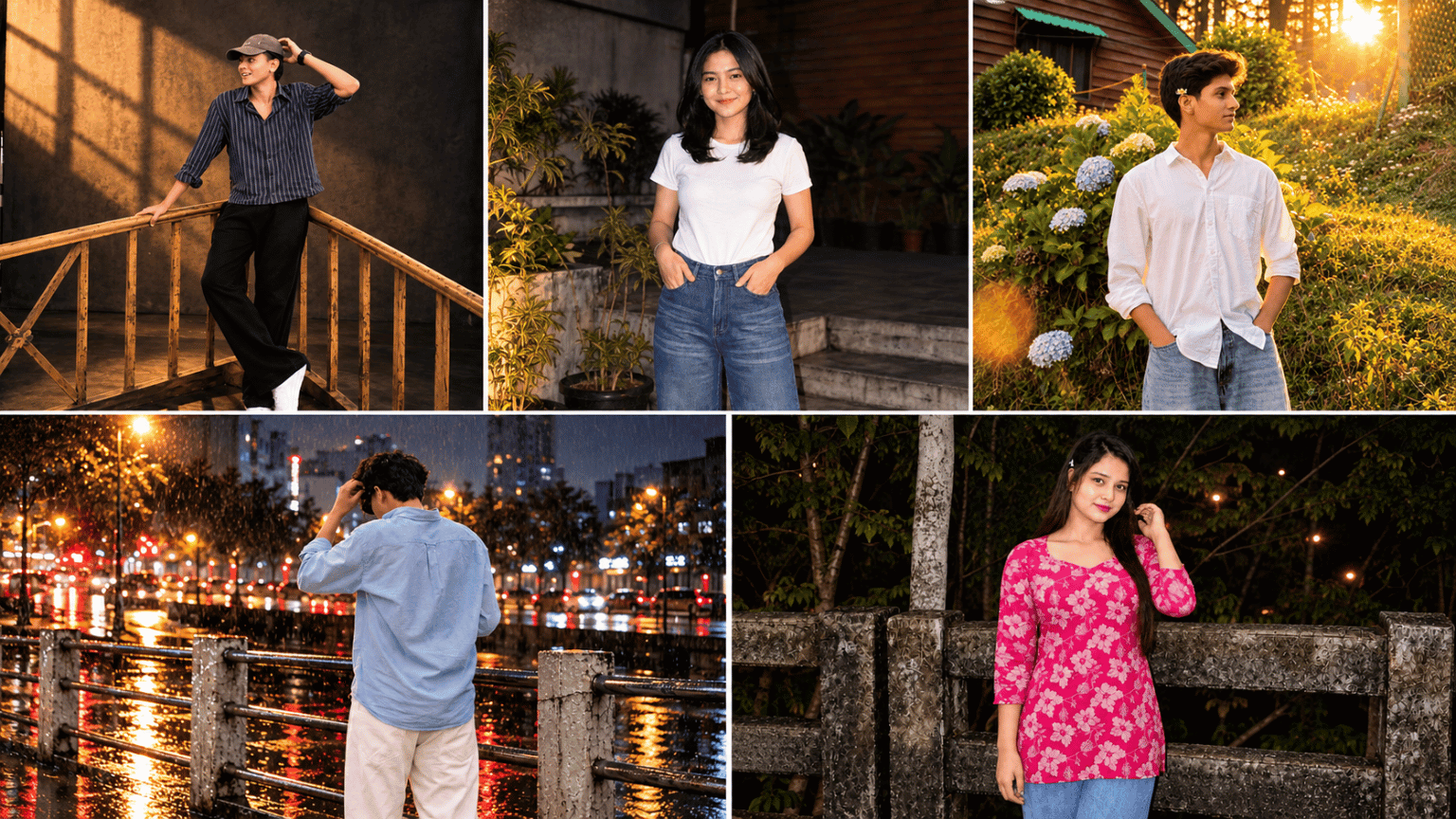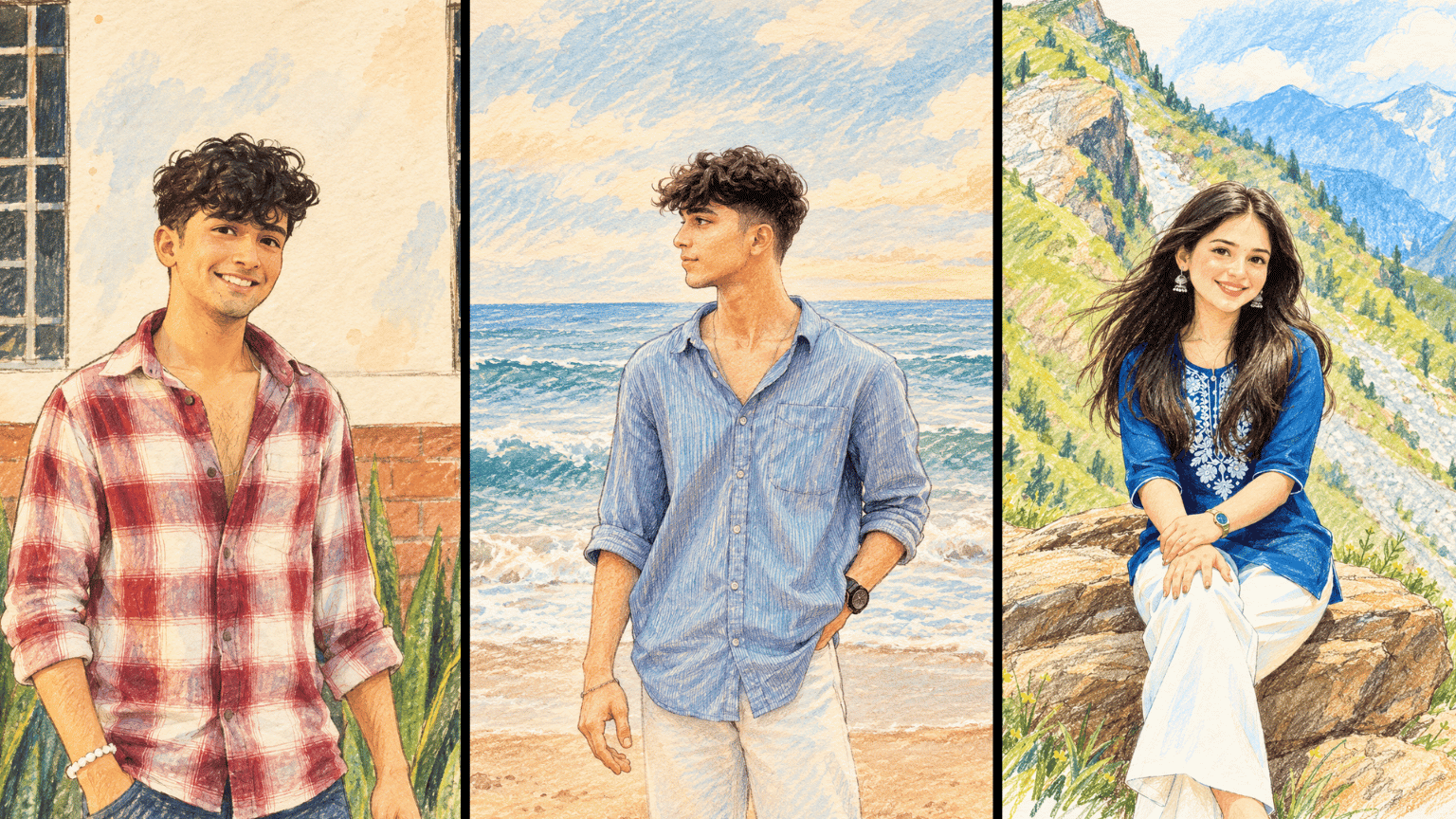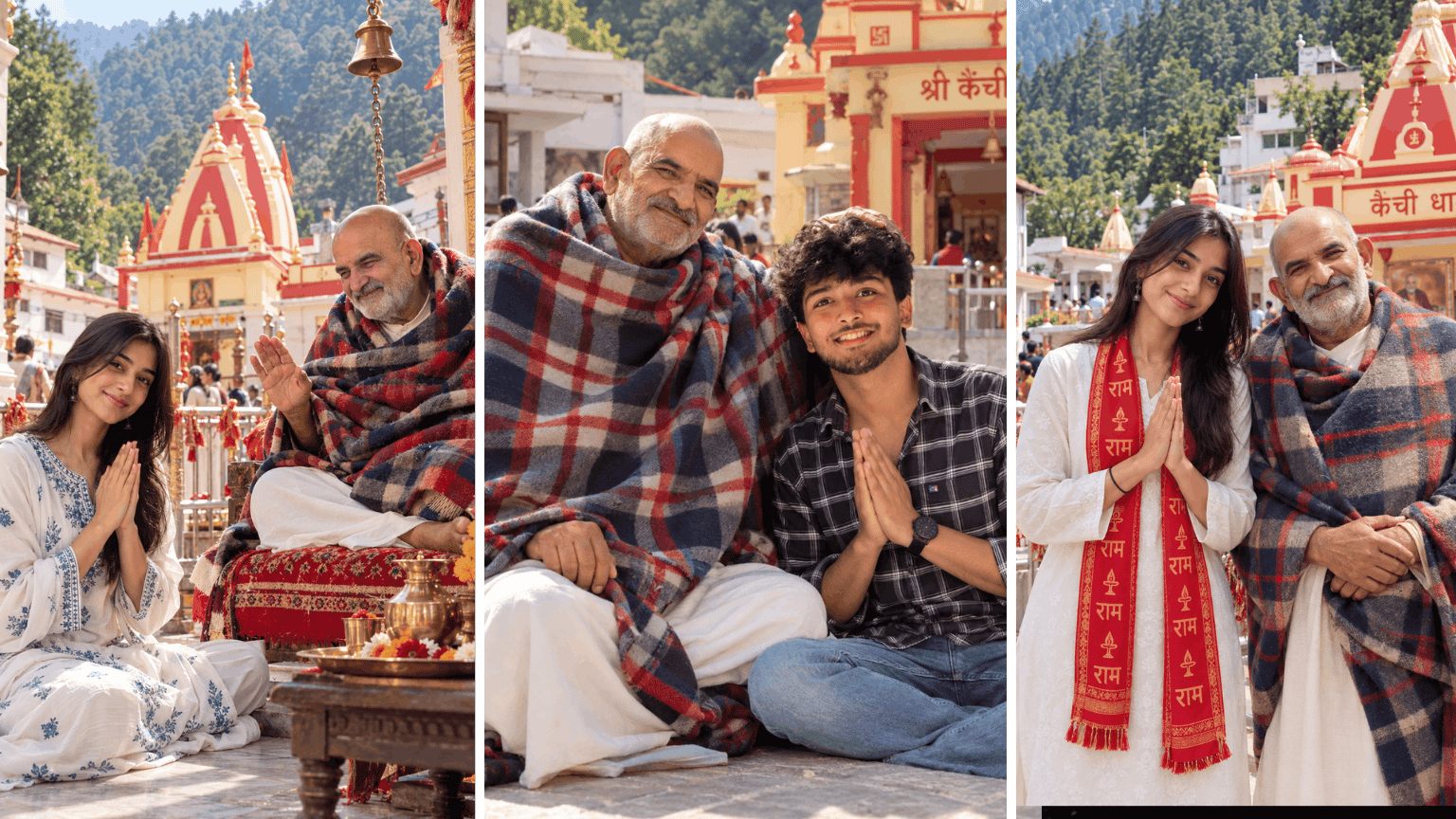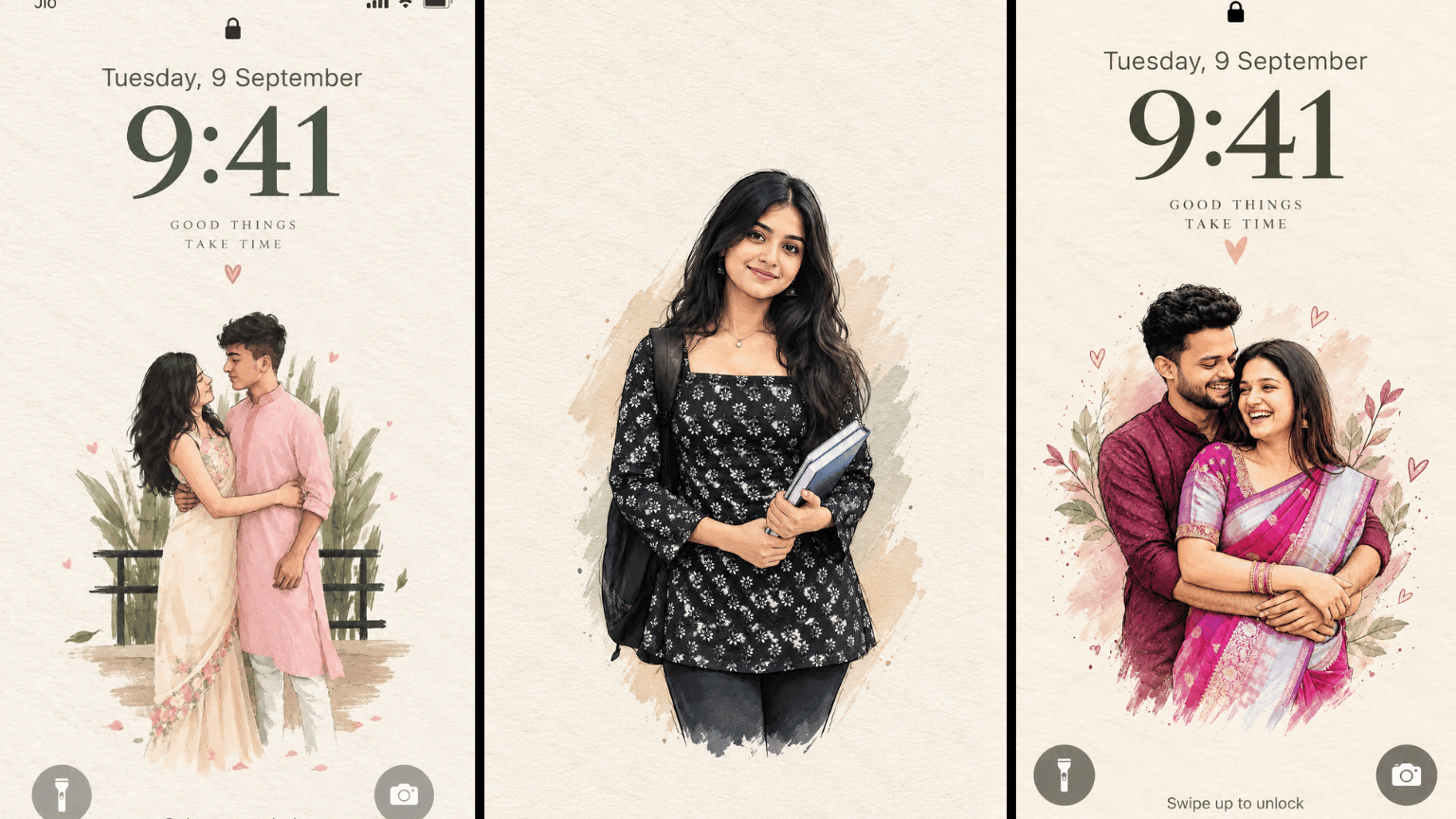
Imagine taking a busy photograph and reducing it to one small, meaningful illustration sitting quietly on a paper cover. This Paper Cover Illustration AI Prompt is made for turning a recognizable photo into a minimalist editorial-style artwork while keeping the main subject, pose, important objects, and overall visual story easy to recognize.
The idea is simple: remove visual clutter, keep the important shapes, and use a limited palette taken from the original photograph. The subject stays small and centered in the lower portion, with plenty of warm white or natural paper space surrounding it. Hand-drawn lines, rough brush marks, subtle paper grain, and slightly uneven edges help keep the result from looking like a polished digital graphic.
For the cleanest result, use a clear reference photo where the main subject and its silhouette are easy to identify. This works especially well for art-book covers, editorial visuals, creative posts, and minimalist Instagram content.
Extract the most recognizable visual elements from the original photograph and reinterpret them as a minimalist hand-drawn paper-cover illustration. Preserve: The most recognizable subject Essential silhouette and proportions Key pose or gesture Important objects The core narrative relationship between people and objects Highly simplify the image. Remove unnecessary details and retain only the visual information needed for immediate recognition. Use: Delicate, slightly imperfect hand-drawn lines A small number of bold, clearly defined acrylic-style flat color shapes Rough paper texture Visible handmade brush marks Slightly irregular, organic edges Subtle imperfections that make it feel genuinely handmade The main illustrated subject should be small, centered, and carefully composed, occupying approximately 10–20% of the bottom half. Leave a large amount of negative space around the illustration. The background should primarily resemble: Rough white paper Warm off-white paper Pale natural paper Minimal editorial book-cover stock Use only a few lines or small color shapes to suggest the surrounding environment. COLOR PALETTE Extract the dominant colors directly from the original photograph. Compress the palette into no more than 4 main colors. Keep the colors restrained, sophisticated, and harmonious. Use bold but controlled flat color blocks. Avoid excessive color variation. Preserve subtle paper grain and handmade brush texture. The illustration should visually feel like a simplified color interpretation of the photograph. TYPOGRAPHY A small amount of simple typography may be included when appropriate. Possible elements: A short title Keyword Object name Location Year Number Short phrase Text should be minimal, understated, and editorial. Typography should naturally interact with the large areas of negative space and the small illustration, evoking: Art book covers Independent publishing Contemporary editorial design Thoughtful children's picture books Do not force text into the composition if it does not naturally fit the photograph. VISUAL LANGUAGE The final poster should feel: Quiet · Poetic · Refined · Minimal · Innocent · Relaxed · Artistic · Thoughtful · High-recognition · Premium The visual concept should be: “A small subject surrounded by a large amount of empty space.” The result should resemble a carefully designed independent art publication cover, rather than a commercial advertisement. AVOID Do not use: Colored-pencil aesthetics Crayon textures Bleeding watercolor Pure line-art illustration Complex realistic illustration Heavy oil-painting effects Smooth polished digital illustration 3D rendering Glossy 3D textures Commercial cartoon aesthetics Cute commercial character design E-commerce advertising aesthetics Generic poster templates Excessive decorative elements Busy compositions Excessive typography
How to Generate Prompt Images
Step 1: Open an AI image generator.
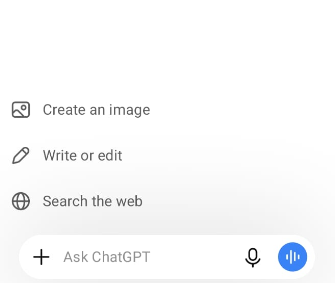
Step 2: Select Create Image.
Step 3: Copy and paste your prompt.
Step 4: Choose a 9:16 vertical size.
Step 5: Tap Generate.
Step 6: Check the generated image.
Step 7: Make changes to the prompt if needed and generate again.
Step 8: Save the final image to your phone.
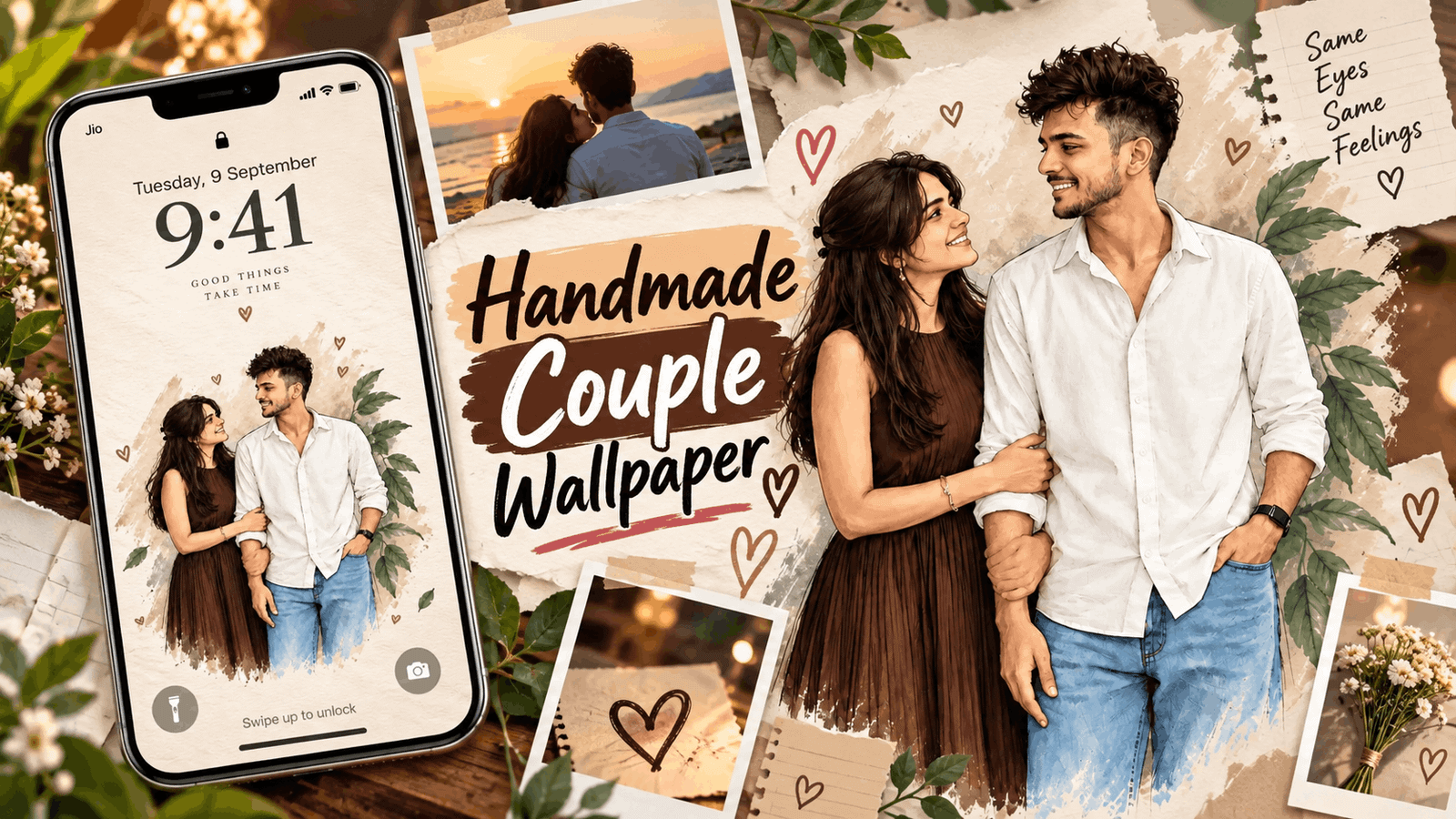
Step 9: Open Wallpaper Settings on your phone.
Step 10: Select the image and set it as your Lock Screen or Home Screen.