
Intro
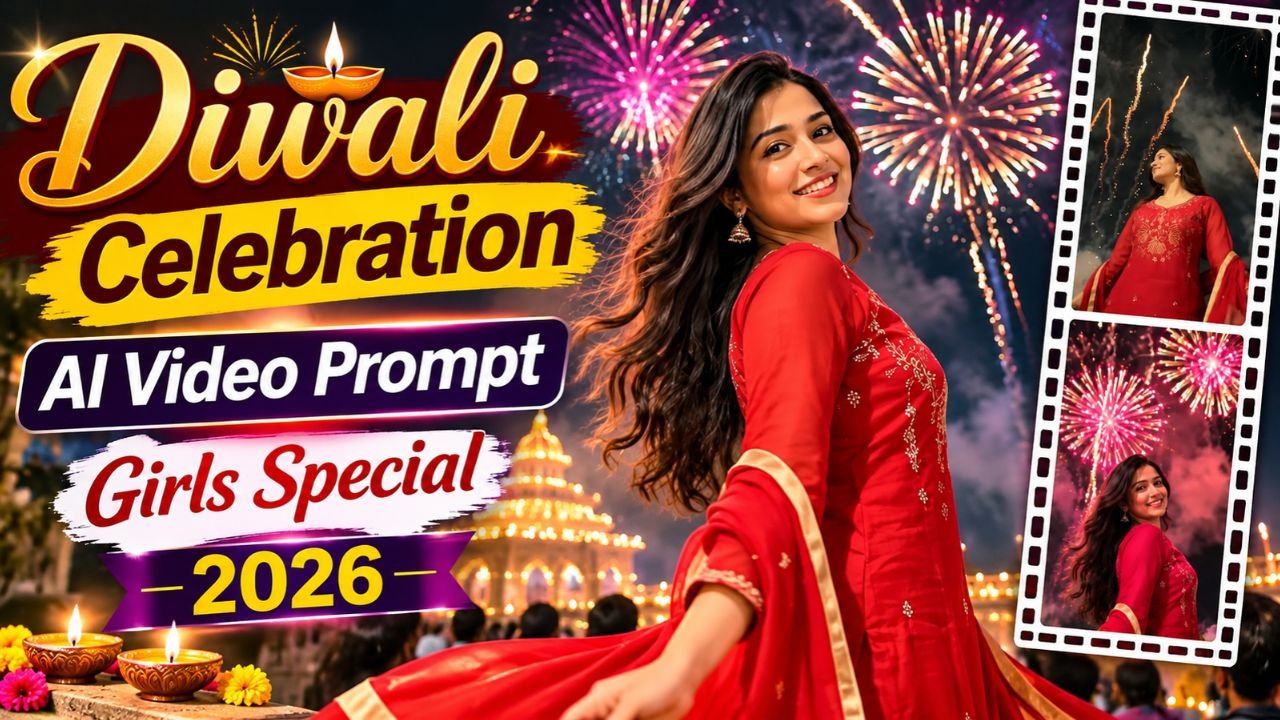
Diwali Celebration AI Video Prompt: Hello, my name is Sushil. This post has one prompt, and it makes a full 13-second Diwali video. Not a photo. A video. It starts with a woman in a traditional Anarkali on a rooftop at dusk. She spins once, her dupatta covers the lens, and when it clears, it is night and fireworks are bursting in the sky. The video is vertical 9:16, made for reels, Shorts and status.
The prompt works in AI video generators that take a text prompt and make a video with sound. I test these prompts myself before publishing them. One honest line first: no video tool gives you the exact same video twice. The spin, the fireworks and the outfit can shift a little every time. The structure stays the same: five scenes, one spin, one transition.
Video at a Glance
Read this box first. It tells you everything the prompt asks for, without reading the whole post.
Format: Vertical 9:16, 13 seconds
Scenes: 5: Calm Twilight, Magical Transition, Green Fireworks, Pink Fireworks, Grand Finale
Main Subject: Young Indian woman, long dark wavy hair, dusty mauve Anarkali with white floral bodice and sheer dupatta
Camera: Low angle, upward-facing, portrait orientation, same position throughout
Transition Trick: Sheer dupatta flows across the lens and covers the frame
Fireworks: Green, then pink and red, then golden, red and white together
Audio: Instrumental only: dhol, tabla, festive bells, orchestral accents, distant firework sounds. No dialogue, no singing, no narration.
Diwali Celebration AI Video Prompt
This prompt is different from the photo prompts on this site. A photo prompt describes one image. This one describes 13 seconds of movement, in five scenes, with timing for each scene. The timing matters. Scene 1 is 0 to 3 seconds. The transition is 3 to 5 seconds. Green fireworks run 5 to 8 seconds. Pink fireworks run 8 to 11 seconds. The finale is 11 to 13 seconds.
Read the whole prompt once before you paste it. The most important lines are the camera line, the dupatta transition line, and the audio lines at the end. If your video tool has a separate audio setting, set it to instrumental before you generate.
ASPECT RATIO: 9:16 VERTICAL | DURATION: 13 SECONDS

Create a cinematic Diwali celebration transition video with realistic human movement, natural fabric physics, smooth camera continuity, and synchronized festive background audio.

CAMERA & PERSPECTIVE:
Low-angle upward-facing camera in portrait orientation. The footage has a 90-degree counter-clockwise rotated visual composition, with the horizon appearing vertical. Maintain consistent camera positioning throughout the video.

SCENE 1 — CALM TWILIGHT (00:00–00:03)

A young Indian woman with long, dark, wavy hair stands on an urban rooftop at dusk. She wears a dusty mauve traditional Anarkali dress with a bold white floral bodice and a matching sheer dupatta with delicate borders.

She looks down toward the camera with a gentle smile, touches her hair with one hand, and gracefully begins a slow 360-degree spin.

The background features illuminated city buildings and a beautiful blue-purple twilight sky.

SCENE 2 — MAGICAL TRANSITION (00:03–00:05)

As she turns away from the camera, her sheer mauve dupatta flows dramatically across the lens, temporarily covering most of the frame.

Use the fabric movement as a seamless transition from twilight into a deep nighttime setting.

Golden-orange fireworks begin launching into the dark sky behind the city buildings.

SCENE 3 — GREEN FIREWORKS (00:05–00:08)

The woman continues her graceful spin and turns back toward the camera. Her long hair flows naturally with the movement.

Large green fireworks explode in the night sky, illuminating the surrounding smoke with vibrant green light.

A few spectators are visible at the edges of the frame, watching and recording the fireworks with their smartphones.

SCENE 4 — PINK FIREWORKS (00:08–00:11)

She continues rotating naturally, displaying her joyful expression and flowing traditional outfit.

The fireworks transition into spectacular red, magenta, and bright pink starbursts. Thick atmospheric smoke reflects the colorful fireworks.

The crowd remains captivated, with several people recording the celebration.

SCENE 5 — GRAND FINALE (00:11–00:13)

The woman completes her full 360-degree spin and turns her back toward the camera.

Her long hair and dupatta flow naturally as she looks upward at the spectacular fireworks finale.

Multiple golden, red, and white fireworks explode simultaneously, filling the night sky with sparkling trails and glowing smoke.

City buildings remain visible in the background.

VISUAL QUALITY:

Photorealistic human appearance, realistic facial features, natural body movement, physically accurate flowing fabric, cinematic night lighting, detailed fireworks, realistic smoke, smooth transitions, consistent outfit and character identity.

IMPORTANT AUDIO REQUIREMENT:

Audio must be instrumental only. Do not generate spoken words or vocals. If synchronized audio generation is unavailable, generate the video without audio rather than producing corrupted or unintelligible speech.How I Made This Video in Google Flow
I made this video in Google Flow (flow.google.com). Flow is Google’s AI video tool. Below is the exact process I used, step by step, with the same settings. Follow it in order and you will get the same kind of result.
Step 1 Open Flow: Go to flow.google.com and open your project. My project is from Nov 06. Tap the “What do you want to create?” box at the bottom.
Step 2 Add Your Photo as Reference: Tap Ingredients and add your own photo. I used one photo of myself in a red dress, standing in a garden. This photo is the reference for your face, hair and outfit. Without a reference photo, Flow invents a new face. With it, your face stays the same through the spin.
Step 3 Paste the Prompt: Paste the full prompt from the box above into the create box. Paste all of it, including the audio lines at the end.
Step 4 Select Video Mode: Tap Video at the top. Do not tap Image. Image makes a still photo. Video makes the moving clip.
Step 5 Select 9:16: Tap the 9:16 ratio. That is the vertical size for reels, Shorts and status. Do not use 16:9 for this video.
Also Read: 13 Best DP Prompt ChatGPT & Gemini 2026 – Stylish DP for Boys & Girls
Step 6 Select the Model: Select Omni 1.1 Flash from the model dropdown. That is the model I used for this video.
Step 7 Select 720p: Tap 720p. It is enough for a reel, and it uses fewer credits than higher quality.
Step 8 Select 10s: Tap 10s. Flow gives 4s, 6s, 8s and 10s. 10s is the longest. The prompt asks for 13 seconds, so in Flow the video comes out in 10 seconds and the scenes run a little faster. If you want the full 13 seconds, generate the video in two parts and join them.
Step 9 Select x2: Tap x2. Flow then makes two versions in one generation. You get two different results to choose from.
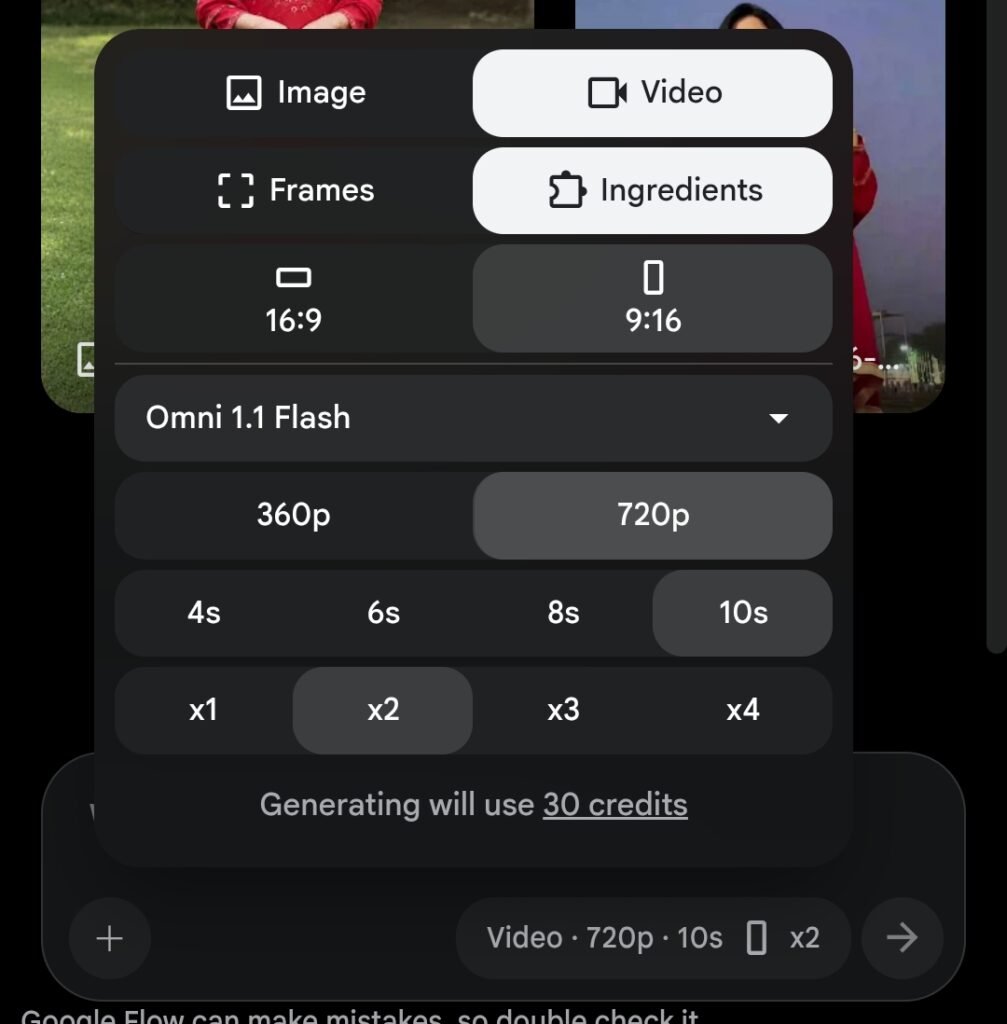
Step 10 Check the Credits and Generate: Before you generate, Flow shows “Generating will use 30 credits”. That is the cost for Video, 720p, 10s, x2 with Omni 1.1 Flash, 30 credits for two videos. Tap the arrow to generate.
Step 11 Pick the Best Result: The results appear in your project grid. I got two videos. In one, the Anarkali came out red. In the other, it came out dusty mauve with the white floral bodice, the one the prompt asks for. Pick the mauve one. That is the correct result. Download it in the best quality available.
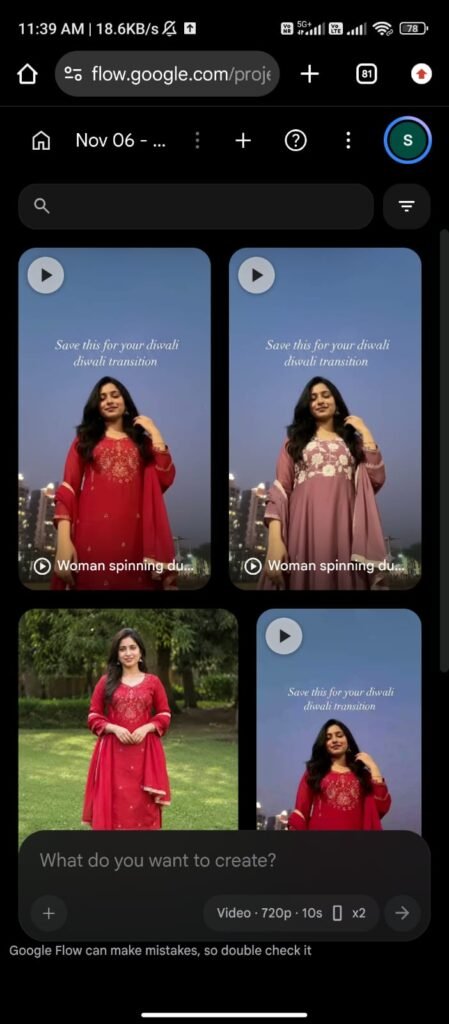
My Settings (summary): Tool: Google Flow (flow.google.com). Mode: Video. Reference: my own photo (Ingredients). Aspect ratio: 9:16. Model: Omni 1.1 Flash. Quality: 720p. Duration: 10s. Variations: x2. Credits: 30 credits.
After the Prompt: Short Notes
Camera Note: The camera never moves. Low angle, looking up, same position for all 13 seconds. That fixed camera is what makes the spin and the fireworks feel real. If your tool moves the camera on its own, the transition breaks.
Audio Note: The prompt asks for instrumental music only, twice. Dhol, tabla, bells and orchestra, with firework sounds underneath. No voice of any kind. If your tool adds a voice or a song, that is the tool’s fault, not the prompt’s. Turn the tool’s audio off and add music yourself.
Outfit Note: The prompt says a dusty mauve Anarkali with a white floral bodice. Keep that colour in mind when you check the result. The colour is the easiest thing for a video tool to change, and the hardest thing to notice until you watch it twice.
The 5 Scenes, Explained
Scene 1: Calm Twilight (0–3 seconds): A rooftop at dusk, blue-purple sky, city lights coming on. She looks down at the camera, smiles, touches her hair, and starts a slow spin. The text “Save this for your diwali transition” appears in white italic serif near the top. This scene is slow on purpose. It sets up the spin.
Scene 2: Magical Transition (3–5 seconds): She turns away, and her sheer dupatta sweeps across the lens and covers most of the frame. That fabric wipe is the transition. When the fabric clears, it is night. Golden-orange fireworks are already launching behind the buildings. Two seconds only, but it is the whole trick of the video.
Scene 3: Green Fireworks (5–8 seconds): She keeps spinning and turns back toward the camera, hair flowing. Big green fireworks burst and light up the smoke green. A few people at the edges of the frame are watching and recording on their phones. The crowd makes it feel like a real celebration, not a studio shoot.
Scene 4: Pink Fireworks (8–11 seconds): The fireworks change colour to red, magenta and bright pink starbursts. The smoke turns pink too. She is still rotating, still smiling, outfit flowing. More people are recording now. The mood lifts from calm to celebration.
Scene 5: Grand Finale (11–13 seconds): She finishes the full spin with her back to the camera, looking up. Golden, red and white fireworks explode together, filling the sky with trails and glowing smoke. Two seconds of finale, then the video ends. The spin starts and ends in the same place, so the video loops cleanly.
How to Use This Prompt?
Step 1 Copy the Prompt: Copy the full prompt from the box above, from the aspect ratio line to the last audio line. Do not leave out the audio section. Without it, many tools add a voice.
Step 2 Open Your AI Video Tool: Open the AI video generator you use. Paste the prompt into the text-to-video box. Keep the aspect ratio at 9:16 vertical and the duration at 13 seconds.
Step 3 Check the Duration Limit: Some video tools cap one generation at 8 seconds. If yours does, generate the video in two parts, scenes 1 to 3 first, then scenes 4 to 5, and join them at the dupatta wipe. Do not ask one tool for 13 seconds if it only supports 8.
Step 4 Generate the Video: Generate once and watch the full video before you judge it. Check the spin first, then the transition, then the fireworks colours in order: green, pink, then gold finale.
Step 5 Download the Video: Download the best version in the highest quality the tool offers. A small preview hides face and fabric mistakes. Check the downloaded file at full size before you post it.
If the first result is wrong, change only one thing at a time. Change the outfit line, or the audio line, or the camera line. Never all three together. One change per try tells you what fixed it.
Also Read: 7 Stunning Mirror Selfie AI Photo Editing Prompts for Girls & Boys
Which Tools and Settings Work Best
The prompt does not name one tool, because it is written for any text-to-video generator that supports vertical video with audio. Use the tool you already have. Set three things before you generate: aspect ratio 9:16, duration 13 seconds, and audio on with instrumental music. If your tool lets you add a starting image, you can attach a photo of yourself in a similar outfit as the first frame. That helps the face stay consistent through the spin. If your tool has a “no voice” or “music only” audio setting, turn it on. The prompt already asks for it, but the setting makes it certain.
Problems and Their Solutions
Outfit colour changed: The Anarkali came out a different colour from dusty mauve. Add this line:
Keep the outfit exactly as described: a dusty mauve Anarkali dress with a bold white floral bodice and a matching sheer dupatta. Do not change the outfit colour.Face changes during the spin: Her face looks different in scene 3 from scene 1. Add this line:
Keep the same woman's face, hairstyle and identity exactly the same in every scene, with no face change during the spin.Dupatta transition is not smooth: The fabric wipe jumps instead of flowing. Add this line:
Make the sheer dupatta flow smoothly and slowly across the lens, covering the frame gradually, with natural fabric physics and no sudden jump.Fireworks look dull or wrong colour: The green fireworks look grey, or the pink ones look white. Add this line:
Make the fireworks bright and saturated: vivid green bursts in scene 3, vivid pink and red starbursts in scene 4, and golden, red and white bursts together in the finale.Audio has a voice or a song: The tool added singing or speech. Add this line, and also switch the tool’s audio setting to music only:
Instrumental music only. No dialogue, no singing, no lyrics, no narration and no voices of any kind. If audio cannot be instrumental, generate the video without audio.Details
| Detail | Information |
|---|---|
| Prompt Type | AI video prompt (text-to-video) |
| Festival | Diwali |
| Duration | 13 seconds |
| Aspect Ratio | Vertical 9:16 |
| Scenes | 5, with timings |
| Main Subject | Young Indian woman, dusty mauve Anarkali |
| Camera | Low angle, upward-facing, fixed position |
| Audio | Instrumental only: dhol, tabla, bells, orchestra, firework sounds |
| Works On | AI video generators with text-to-video and audio |
| Result Guarantee | Not promised; results vary with the tool |
| Price | Not specified in prompt |
Final Words
One prompt, five scenes, thirteen seconds. A slow spin at dusk, a dupatta wipe into night, green fireworks, pink fireworks, and a golden finale. The prompt does the planning. Your job is small: copy it whole, keep the camera and audio lines in, check the duration limit of your tool, and judge the result by the spin first. If the spin and the transition work, the video works. Happy Diwali.
FAQs
What is the Diwali celebration AI video prompt?
It is one text prompt that creates a 13-second vertical 9:16 Diwali transition video. A woman in a mauve Anarkali spins on a rooftop at dusk, her dupatta wipes the frame into night, and green, pink and golden fireworks burst behind her, with instrumental festive music.
How long is the Diwali video made by this prompt?
13 seconds, in five scenes: twilight 0–3 seconds, transition 3–5 seconds, green fireworks 5–8 seconds, pink fireworks 8–11 seconds, and the grand finale 11–13 seconds.
Can I use this Diwali video prompt in Gemini?
The prompt is written for AI video generators that support text-to-video with audio. If your tool supports 9:16 vertical video and 13-second duration, paste the full prompt there, including the audio section at the end.
Will the video have music or a voice?
The prompt asks for instrumental music only: dhol, tabla, festive bells and orchestral accents, with distant firework sounds. No dialogue, no singing and no narration. If your tool cannot do instrumental audio, the prompt tells it to generate the video without audio instead.
Why does my video tool only make 8 seconds?
Many video tools cap one generation at 8 seconds. Generate the video in two parts, scenes 1 to 3, then scenes 4 to 5, and join them at the dupatta wipe in scene 2. Do not ask for 13 seconds in one generation if your tool only supports 8.