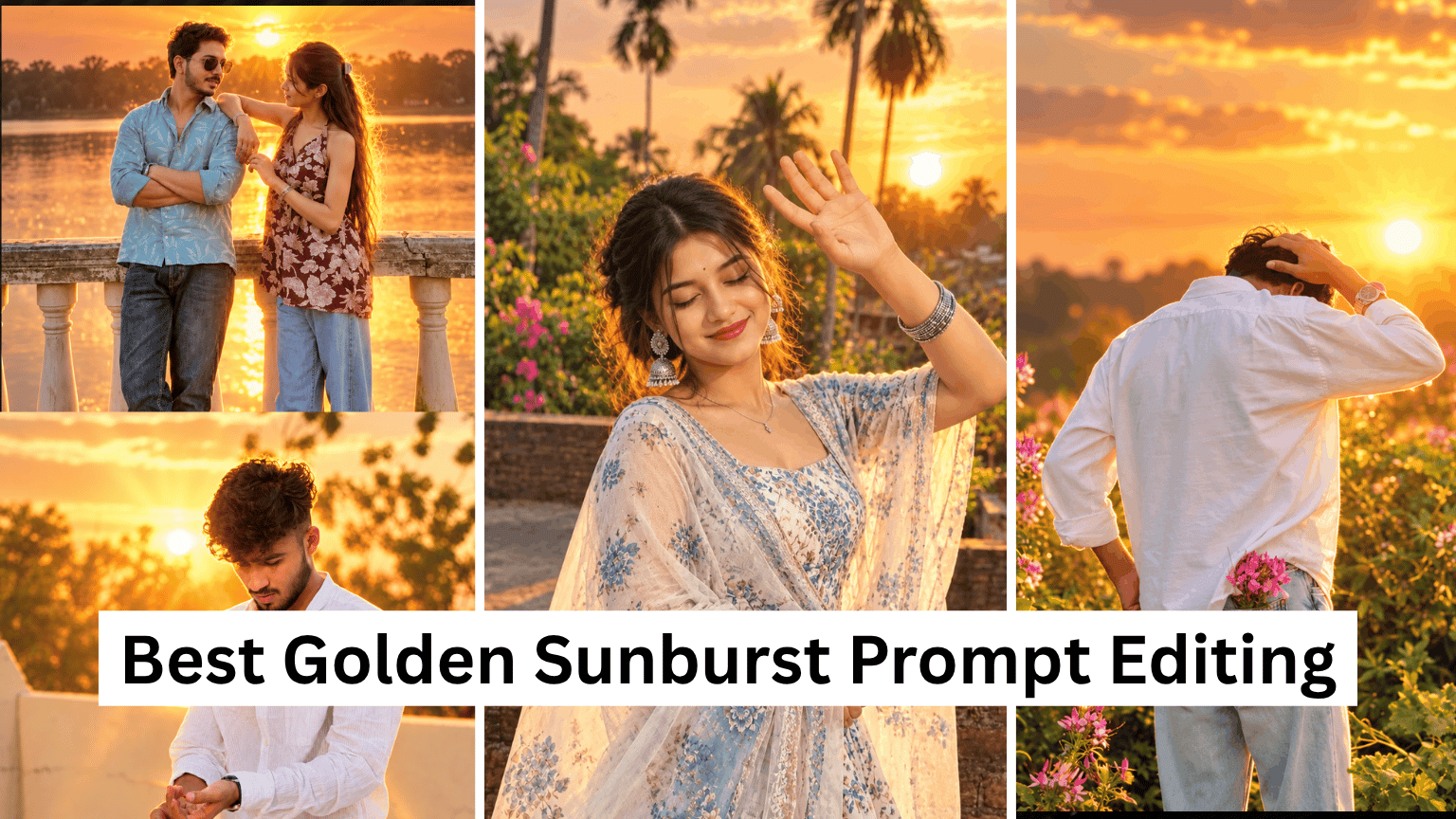
Golden Sunburst Portrait Editing Prompt: Hey, my name is Sushil, and today we’ve created the Golden Sunburst Portrait Editing prompt to make the lighting in an existing portrait photo more warm, dramatic, and cinematic, adding a sunset-like effect to the background.
The golden backlight is transformed into a bright sunburst halo, while a crimson-amber glow is added to the red dupatta. The focus is on maintaining the original setting, pose, and overall framing of the rooftop garden.
This prompt is specifically designed for AI image editing tools like ChatGPT and Gemini, as both apps create AI images for you for free. With this Golden Sunburst prompt, you can easily create one by adding a reference image.
Golden Sunburst Portrait Editing
The best part about this prompt is that its main focus is on improving the lighting and atmosphere of an existing image, rather than changing the entire photo. In this, an attempt is made to make the golden backlight, red dupatta, and background more dramatic while maintaining the woman’s face and pose.
In this photo concept, a woman stands in a rooftop garden. Golden light appears behind her, which the prompt asks to change to a more intense sunburst effect. The idea is to create a warm halo around her hair and face, while the red dupatta is given a glow of crimson and amber tones. The trees and balustrade behind are more backlit and slightly silhouetted. Soft warm bokeh and light particles help give the entire photo a dreamy, cinematic feel.
Golden Sunburst Prompt Details
| Detail | Information |
|---|---|
| Prompt Name | Golden Sunburst Portrait Editing |
| Category | AI Photo Editing |
| Style | Cinematic Portrait |
| Best For | Portrait Lighting Enhancement |
| Lighting | Golden Backlight, Sunburst |
| Camera Look | Sharp Subject, Warm Bokeh |
| Works On | ChatGPT, Gemini |
| Best Use Case | Portrait Photo Enhancement |
| Common Problem | Face or Background Changes |
Three visual elements are most important in this concept: golden light, red dupatta, and rooftop garden background. The instruction to keep the face sharp and natural keeps the subject in focus, while soft bokeh and atmospheric particles in the background enhance depth.
Golden Sunburst Portrait Editing Prompt 1
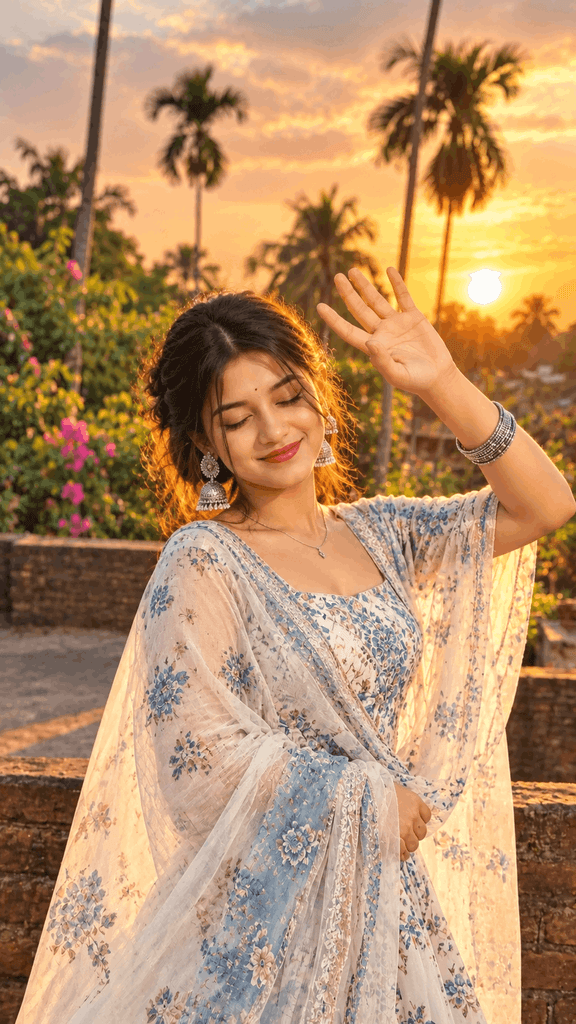
Based on enhance the golden backlighting into an intense, magical sunburst halo around the woman's hair and face, and make the red dupatta glow with a fiery crimson-amber light, preserving her exact pose and the entire rooftop garden background. The background elements (trees, balustrade) should remain but be more dramatically backlit and silhouetted, with increased atmospheric light particles. Focus is sharp on her, with soft, warm bokeh.
Golden Sunburst Portrait Editing Prompt 2
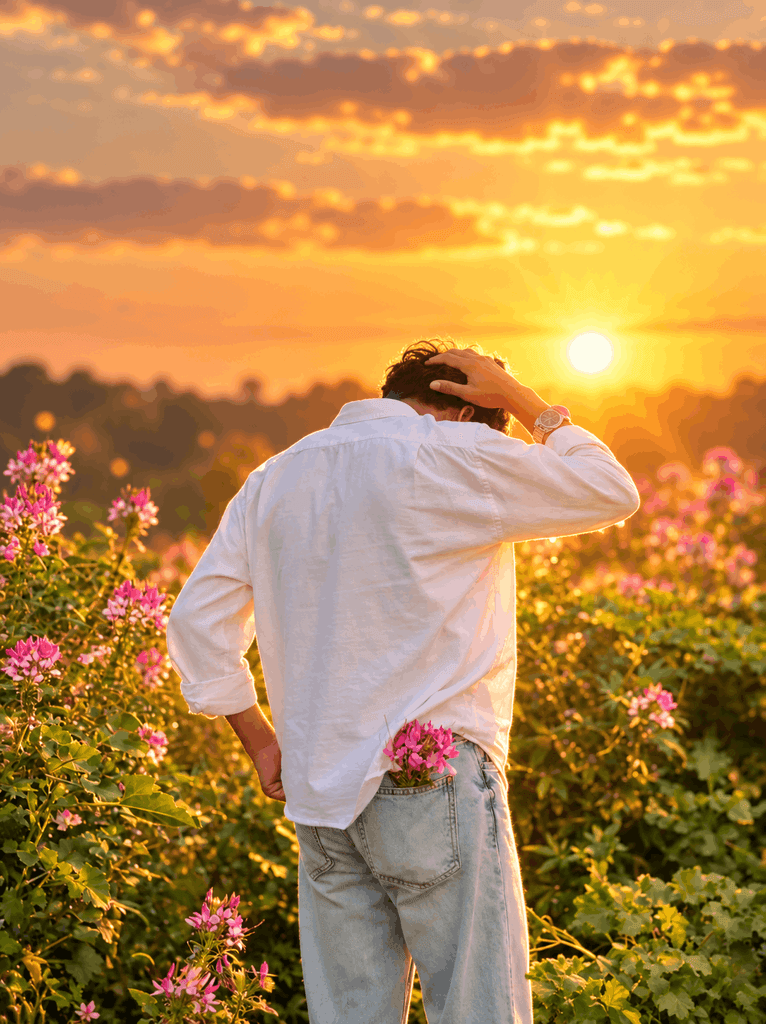
Edit the uploaded image. Keep the woman, her face, pose, clothing, framing, and rooftop garden exactly unchanged. Enhance the golden backlight into a bright sunburst halo around her hair and face. Add a rich crimson-amber glow to the red dupatta. Make the trees and balustrade more dramatically backlit, with subtle golden light particles and soft warm bokeh. Keep her face sharp and natural. Photorealistic cinematic lighting.
What Makes This Portrait Prompt Different?
The main idea behind this prompt is to focus on controlling the lighting, color, and atmosphere rather than completely redesigning an existing portrait. The warm color relationship between the golden backlight and the red dupatta, in particular, makes the photo more noticeable.
Small Changes You Can Try
If you want to change the color a little while keeping the same lighting idea, then you can try this variation.
Change the crimson-amber glow on the red dupatta to a soft ruby-gold glow.If you want a softer and calmer mood, try a version with reduced light intensity.
Make the sunburst halo softer and more natural, with gentle golden backlight and subtle bokeh.The lighting can be made a little deeper and warmer for a sunset mood.
Transform the lighting into a warm sunset glow with deep amber highlights and soft orange atmospheric light.If you want another outdoor environment instead of a rooftop garden, you can change the location.
Keep the woman and her pose unchanged, but place the same lighting effect in a peaceful terrace garden at sunset.A different visual mood can be created by changing the color of the dupatta.
Replace the crimson-amber glow on the dupatta with a rich emerald-gold glow while keeping the original clothing design unchanged.If there are more than one person in the photo, then it will be necessary to clearly mention the subject count in the prompt.
Preserve both people, their faces, poses, clothing, framing, and original background while enhancing the same golden cinematic lighting.The Idea Behind This Prompt
The basic idea of the prompt is to transform a normal portrait into a portrait-type image with more dramatic lighting. Here, lighting is the main editing element, rather than changing the subject. Changing the golden backlight to a more noticeable sunburst creates a bright visual focus around the face and hair.
The red dupatta is another important element in this composition. The crimson and amber glow makes the dupatta appear part of the lighting effect rather than just a piece of clothing. Warm red and golden light can appear naturally connected to each other, so the overall color mood of the photo is kept warm.
Instead of removing the rooftop garden completely or creating a new background, the instruction is to dramatically backlight the same setting.
Also Read: Foggy Forest Moody Cinematic Look
This maintains the original environmental concept of the image, while adding stronger silhouettes and atmospheric depth to the trees and balustrade.
What Each Part of the Prompt Does
The first prompt begins with “Based on enhancing the golden backlighting,” which means it will work on uploaded photos, not create new ones. The “intense, magical sunburst halo around the woman’s hair and face” line intensifies the golden light, creating a glowing ring around the woman’s hair and face. If you remove this line, the sunburst effect will disappear, and the photo may appear normal.
“make the red dupatta glow with a fiery crimson-amber light” makes the red dupatta glow. If you remove “fiery” or “crimson-amber,” the dupatta will remain red, without a warm glow.
“preserving her exact pose and the entire rooftop garden background” This line is very important because it tells the AI not to change the face, pose, or background at all. If this line is missing, the AI will replace the face or clothing.
“Background elements (trees, balustrade) should remain but be more dramatically backlit and silhouetted” keeps the background elements the same, but their lighting becomes dramatic. “With increased atmospheric light particles” adds tiny golden particles to the air, making the photo magical.
“Focus is sharp on her, with soft, warm bokeh” keeps the main subject in sharp focus and softens and blurs the background, creating a professional camera look.
The second prompt begins with “Edit the uploaded image. Keep the woman, her face, pose, clothing, framing, and rooftop garden exactly unchanged,” which explains what should not be changed. Adding “Photorealistic cinematic lighting” at the end makes the entire scene look like real photography.
How to Use the Golden Sunburst Prompt?
Step 1 Copy the Prompt
Copy the entire prompt version you want to use, either Prompt 1 or Prompt 2 above. It’s best to try the result from the original version before changing the prompt wording.
Step 2 Open the AI Tools App & Website
Open ChatGPT and use your uploaded photo and the copied prompt for image editing. If you want to use Gemini, you can try the same prompt there as well.
Step 3 Add Your Photo
Upload your portrait photo. Choose a photo where the woman’s face is clearly visible and the rooftop garden and original lighting are sufficiently visible.
Step 4 Generate the Image
Paste the prompt and submit the image editing request. The AI will use the original image as a reference and attempt to make the requested changes to the lighting, glow, and background atmosphere.
Step 5 Wait for the Result
Wait for the generation to complete and compare the result to the original photo. Be sure to check the face, pose, dupatta color, and rooftop background.
Step 6 Download the Image
Once generated, you can download the image by clicking on it, which will be saved in the gallery.
The same prompt can be used in Gemini. Both tools don’t necessarily interpret the same text exactly the same way, so lighting intensity, facial details, or background treatment may differ in the result. Also read: 5 Best Nighttime, Cinematic AI Photo Prompts
Which Photo Should You Upload?
The best results are achieved when a person’s face is clearly visible in the photo, only then will the AI be able to create an image with a consistent face character. The photo should be from a front or slightly side angle. There should be no glasses or masks on the face.
The photo should not be blurry or low-quality. If there are two people, upload separate photos or try the prompt on both photos, but results may vary.
This prompt will not work properly on photos that are too dark, or where the face is unclear, or have a cluttered background.
FAQs
Will the face remain exactly the same as in the original photo?
Adding “keep face sharp and natural” and “preserve exact facial features” to the prompts will keep the face mostly the same, but there’s no 100% guarantee. Slight variations may occur, so check the results.
Can I try another color instead of golden?
Yes, you can replace “golden” with “blue,” “purple,” “pink,” or any other color. You can get ideas from the prompts in the “Small Changes You Can Try” section above.
Can I use this prompt for a photo of one person?
Yes, this prompt is designed for a photo of one person only. For a photo of two people, try the prompt in the “Small Changes You Can Try” section.